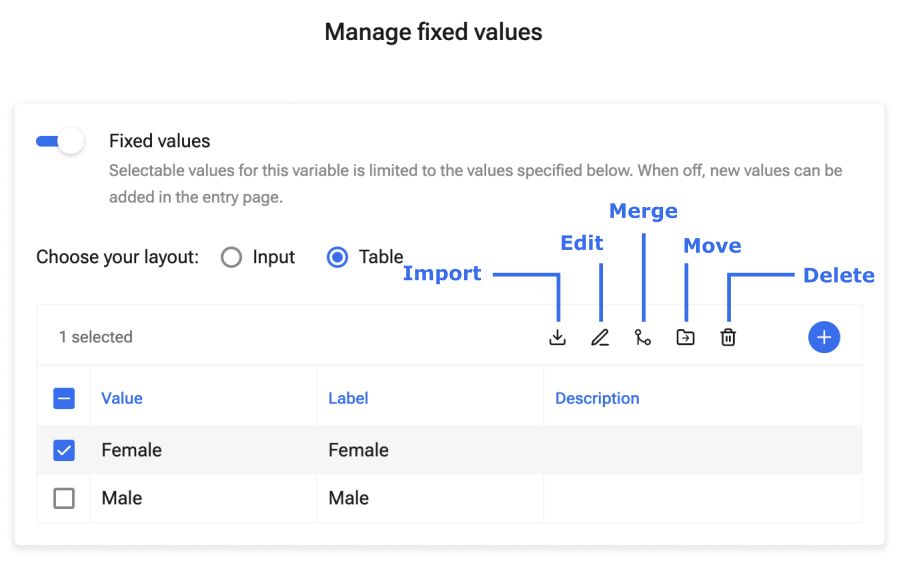
When you have created your categorical variable, you can manage your fixed values by opening the variable and clicking the "Fixed values" card. You can view your values as input (standard) or in a table view.
Add new values
New values can be added both from the table and the input layout.
1. From the input layout, write the value directly into the values field and press Enter
2. From the table layout, click the “plus” icon
Set labels and descriptions.
Each fixed variable can be defined with a value, label, and description. These are available in the table view. In both forms and analyses, you can choose whether to use values or labels. In the Dataset view, the label is displayed. During export, you can choose whether the value or the label should be exported. The description will become visible when you enter data and hover over your values.
1. Open the variable and click on the "Fixed values" card to open the "Manage fixed values" page.
2. Choose the table layout, and click on the value you want to define.
3. Enter the value, label, and description of the value in the card.
4. Click "Confirm".
Import values
Values can be imported from another categorical variable. In this case, you must make a template out of the categorical variable you want to import the values from (see Create a template).
1. From the table layout, click the import icon.
2. Select the template containing the variable you want to use.
3. Select the variable to import from.
4. Select the values in the chosen variable to import.
5. Click "Import".
Edit values
Values, labels, and descriptions can be edited from the table layout.
1. Open the value you want to edit either by clicking on it, or checking the box beside it, and clicking the edit icon.
2. Do the changes you would like, and click "Confirm".
NB: When you change the value of a fixed variable, any analysis saved using this variable will become invalid, and you will have to rerun it.
Merge values
It is possible to merge several values into one new value or an existing one. Note that this cannot be undone.
1. From the table layout, select the values you want to merge.
2. Click the merge icon.
3. Choose whether to merge into a new value or an existing one
4. If you merge into a new value, give your new value a name (and a label and description if desired).
5. If you merge into an existing value, select which value you would like to merge the chosen value into.
6. Click "Confirm"
7. As this is an action that can not be undone, you will be asked to confirm the merge once more. Click "Merge" to complete the procedure.
Move values
The order of your fixed values can easily be changed in two different ways:
1. In the "Input" view: drag your value to the new desired position.
2. In the "Table" view:
Select the value(s) you want to move.
Click the move icon.
Choose where you want to move your value(s) to.
Click "Confirm".
Delete values
Fixed values can be deleted in two different ways:
1. In the "Input" view: click on the "x" next to the value you want to delete
2. In the "Table" view:
Select the value(s) you want to delete
Click the delete icon
If you have already registered data in this variable you can choose to keep or remove the dataset values (see more about this below).
Click "Delete"
Deleting a fixed value without removing the dataset values
When you delete a fixed value but choose not to delete the dataset values, the entry will appear empty in the dataset view, but the underlying data is not actually deleted. If you open an entry, you will notice the deleted fixed value is shown in grey. If you were to download the dataset, the deleted fixed value would still be shown in the dataset. You can easily re-add the fixed value to your variable in the same way you add any other fixed value. Since the underlying data hasn't been deleted, the entries will automatically be repopulated. Note that the value should be written in the same way as it was before deleting it to properly restore the data.
Deleting a fixed value by removing the dataset values.
By choosing this option, all registered data for this fixed value will be deleted. Re-adding the value will not restore the data. Use this option with caution as it is irreversible.