
1. Navigating the project
After logging in, you are directed to the Dashboard page. Open the appropriate project by clicking the project card
Dataset window
When you have entered your project, you will be directed to the “Dataset” window. Here, you will see all entries (i.e. patients/participants) you have access to. Information for each entry is presented in one row.
Filtering and search functionality
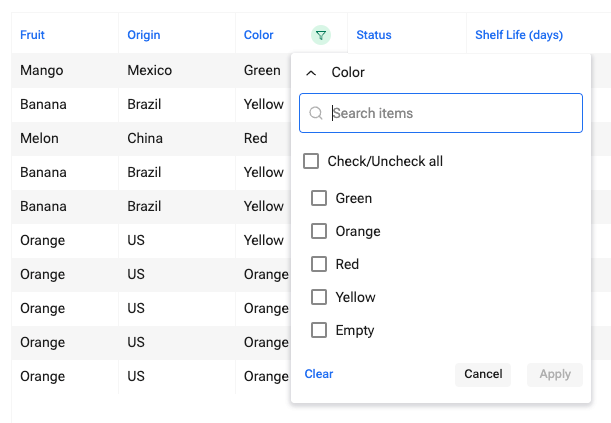
To locate a specific entry, you can either use the search bar in the upper right corner or you can filter the dataset. To filter entries, click the filter icon to the right of the column name you would like to filter on. A dropdown menu will appear where you can choose how to filter the data.
2. Navigating an entry
To create a new entry (i.e. register a new patient) click on the “+ New entry” button in the upper right corner. To open an existing entry, simply click on the entry row.

Forms
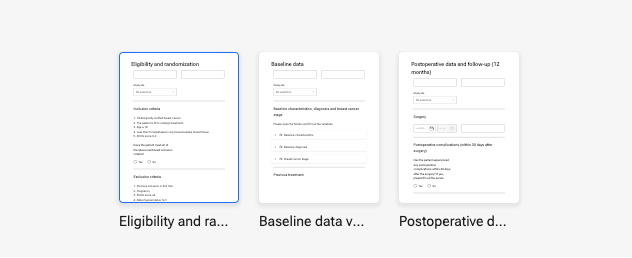
If the project contains more than one form, an overview of all available forms is shown at the top of the screen. Click on the appropriate form to open it and fill out the variables.
Groups
Groups are shown as folders containing variables. Click on the arrow left of the folder name to open it and fill out all the variables. Click on the arrow again to close it. When all variables in a folder have been filled out, a green checkmark will appear on the right side of the folder name.

Auto-calculated variables
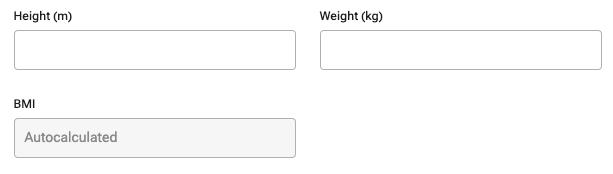
Some variables are automatically calculated based on the values of other variables. (e.g. BMI based on height and weight). To run the calculation, you need to save the entry. This can be done by clicking the “Save” button in the upper right corner.
Series
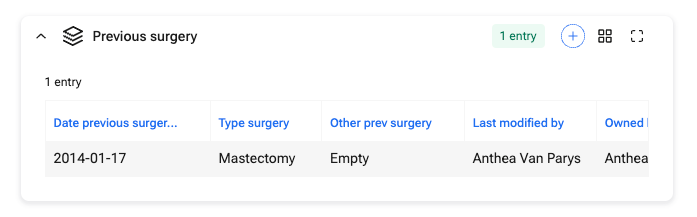
In a series, you can register the same variables multiple times. To create a new entry in a series, you have to first save the entry by clicking the “Save” button in the upper right corner. Then, click on the “+” icon on the right side of the series name.

Fill out the variables in the series and click “Save” in the upper right corner. To leave the series and go back to the main level, click the “x” in the upper-right corner. Your entry is now visible when you open the series card by clicking on the arrow on the left side of the series name.
Saving an entry
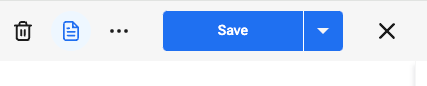
To save an entry, click the “Save” button in the upper-right corner. If you are finished with the entry you can click the “x” to go back to the Dataset window.
Making changes to an existing entry
To make changes to an existing entry, click on the entry row you want to change to open it. Make your changes and click the “Save” button in the upper-right corner.
What to do when you can’t find an entry?
Can’t find the entry you are looking for?
The first thing you can do is check if there are any active filters (depicted with the filter icon next to the variable name). The “Clear filters” button on the right side of the screen will be visible when there are any active filters.

Second, you may not have the correct permissions to view the entry you need. You can check your permissions by going to the “Collaborators” tab and clicking on your account. Go to “Permissions” to see which rights you have been granted by the project owner. Permission settings that could limit access to entries can be on the general level (access to own, group, or all data) or the status level (access to entries with specific statuses).